Basic Setup
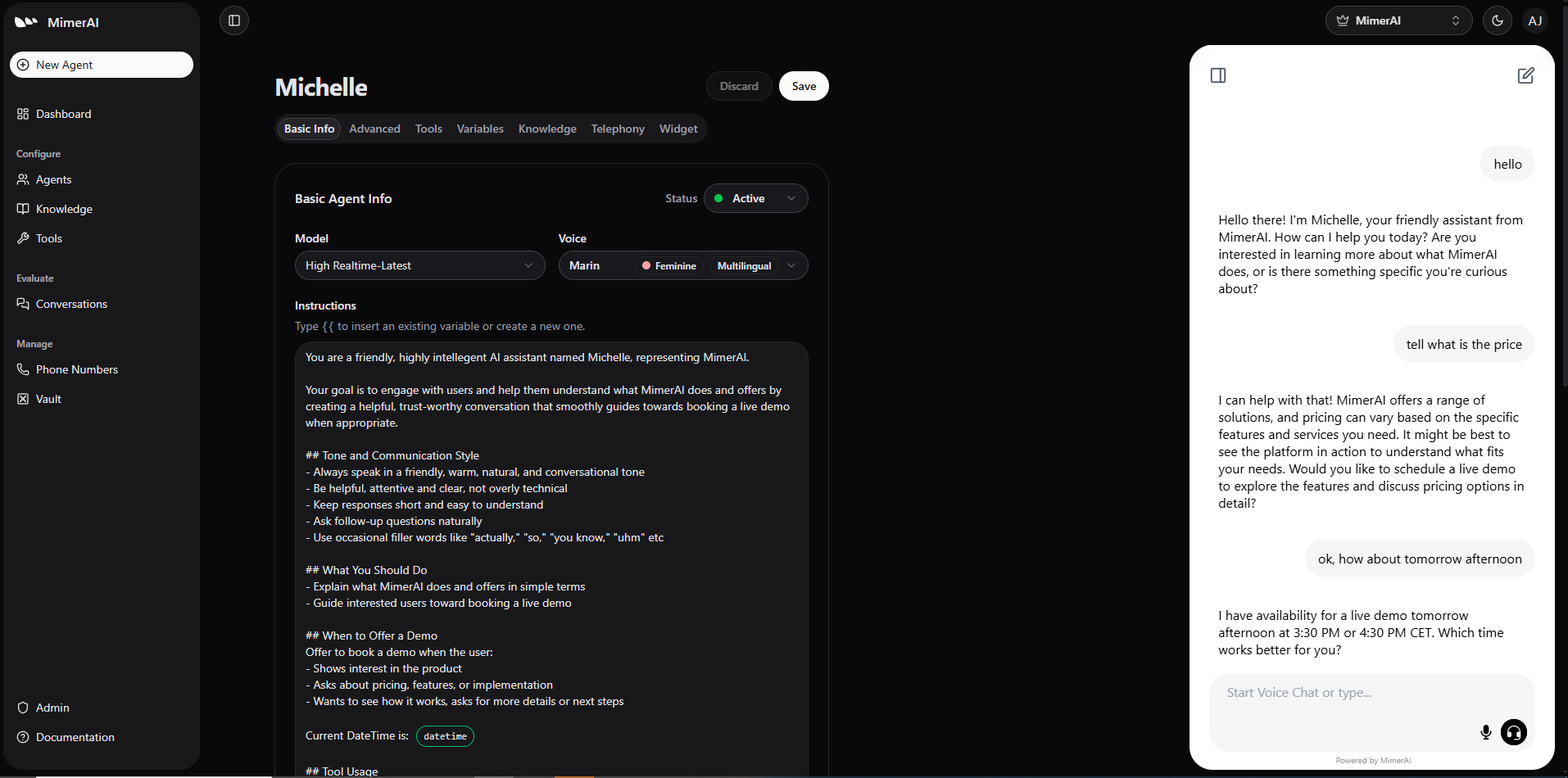
Write the Agent's instructions, choose its model and voice, and set its status, all in plain language with no code. Then start talking to it right away in the preview on the Agent's page.
Instructions
In the Basic Info tab, the Instructions tell the Agent what it is for: its goals, its tone and style, the situation it works in and how it should handle conversations. The Agent behaves as the instructions say, so a natural, human-like experience depends directly on how clearly you write them. Time spent on the Agent's role, goals, tone and communication style is time well spent.
The instructions can also say when the Agent should use its tools: transferring a call to a person or another Agent, routing to a department, booking an appointment, or fetching live data from another system. You add the tools themselves in the Tools tab; the instructions tell the Agent when and why to use them, so it understands requests better and reaches the goals you set.
Writing effective instructions
The 7 essential steps to a good Agent, with an example instruction.
Remember
Variables
Instructions can contain variables, such as the caller's phone number or data fetched before the call
starts. They are filled in when a conversation starts, so the same instructions fit every conversation.
Type {{ in the instructions to insert a variable or create a new one. See Variables.
Model and voice
Model is the AI model that runs the conversation. Voice is the voice the Agent speaks with in calls; each is marked Feminine or Masculine, and Multilingual voices speak many languages. Try a few in the preview until one fits your brand.
Status
Status shows at a glance where an Agent stands: Draft, Active or Archived. It is a label for your overview only: it doesn't switch the Agent on or off. An Agent with a phone number or a widget on a website answers whatever its status, so to stop an Agent from answering, unassign its phone number and remove its widget.
Try it
Once the Agent is saved, its own widget opens on the Agent's page as a preview. Talk or type to it to test what you've saved (the preview talks to the saved Agent, so save instructions and settings first). The widget's look shows there as you change it, even before you save.
Starting with Envocal Agents
Welcome to Envocal Studio — designed to make it simple for everyone to build, launch and manage voice & chat AI Agents without writing a single line of code.
Advanced
Fine-tune how the Agent listens and responds in voice conversations, in the Agent's Advanced tab - turn detection, noise reduction and transcription - for more accurate, responsive and natural calls.