Tools
Let the Agent take actions, not only answer questions - send follow-up emails, transfer or end calls, and fetch or update data in your own systems - in the Agent's Tools tab.
Tools give the Agent superpowers. With tools, your Agent can:
- Transfer or end calls
- Send follow-up emails
- Fetch or update data in your other systems
- Trigger actions in those systems
Types of tools
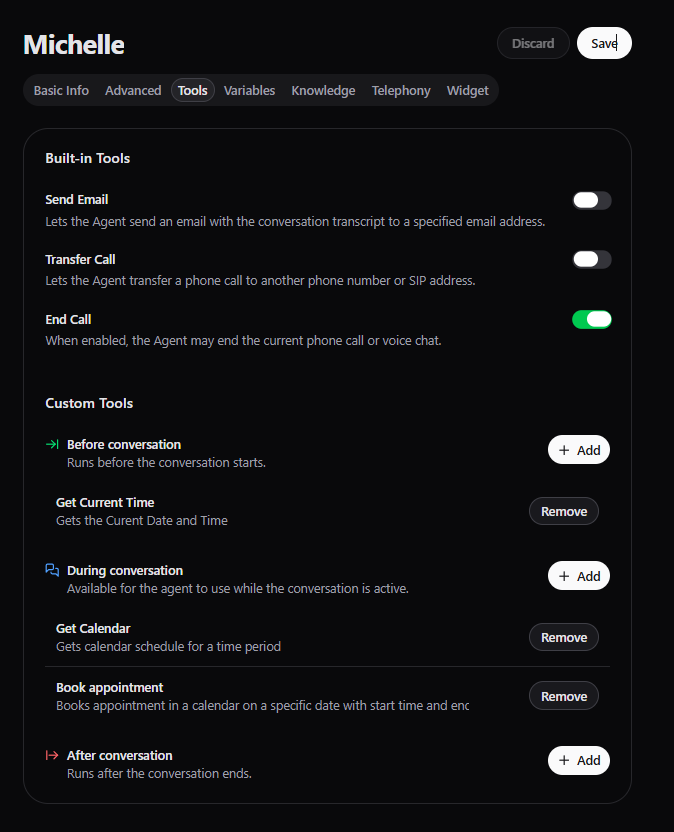
Built-in tools
Ready to use, provided by Envocal. Switch them on in the Agent's Tools tab:
| Tool | What it does |
|---|---|
| Send Email | Sends the conversation transcript to the email address you enter, for follow-up. See follow-ups. |
| Transfer Call | Lets the Agent transfer a phone call to another phone number or SIP address, given in its instructions. See call transfers. |
| End Call | Lets the Agent end a phone call or voice chat when it decides the conversation is over. |
They need little configuration and are commonly used for call handling and follow-ups.
Custom tools
Connect the Agent to any system with an API, without writing code: you enter the API's address, the method (GET, POST…) and the parameters it needs.
What custom tools let your Agent do, for example:
- Check a ticket's status (Zendesk, HubSpot)
- Book a meeting directly in your calendar (Outlook, Google)
- Create records in your CRM or support system
- Trigger workflows in your backend
Create a custom tool
Connect the Agent to an external system through its API, step by step.
In the Agent's Tools tab, custom tools are added to a phase: Before conversation, During conversation or After conversation. A tool can be added to the phases it was made available for. Tools before and after the conversation run one after another, in the order they are listed, so one tool can use what an earlier one stored. Tools during the conversation are used by the Agent when it needs them.
When tools can be used
Before, during or after a conversation, and what that means for the Agent.
Example
Our example Agent Michelle books demos with three custom tools.
- Before the conversation: Get Current Time. It gives Michelle today's date and time, so she understands
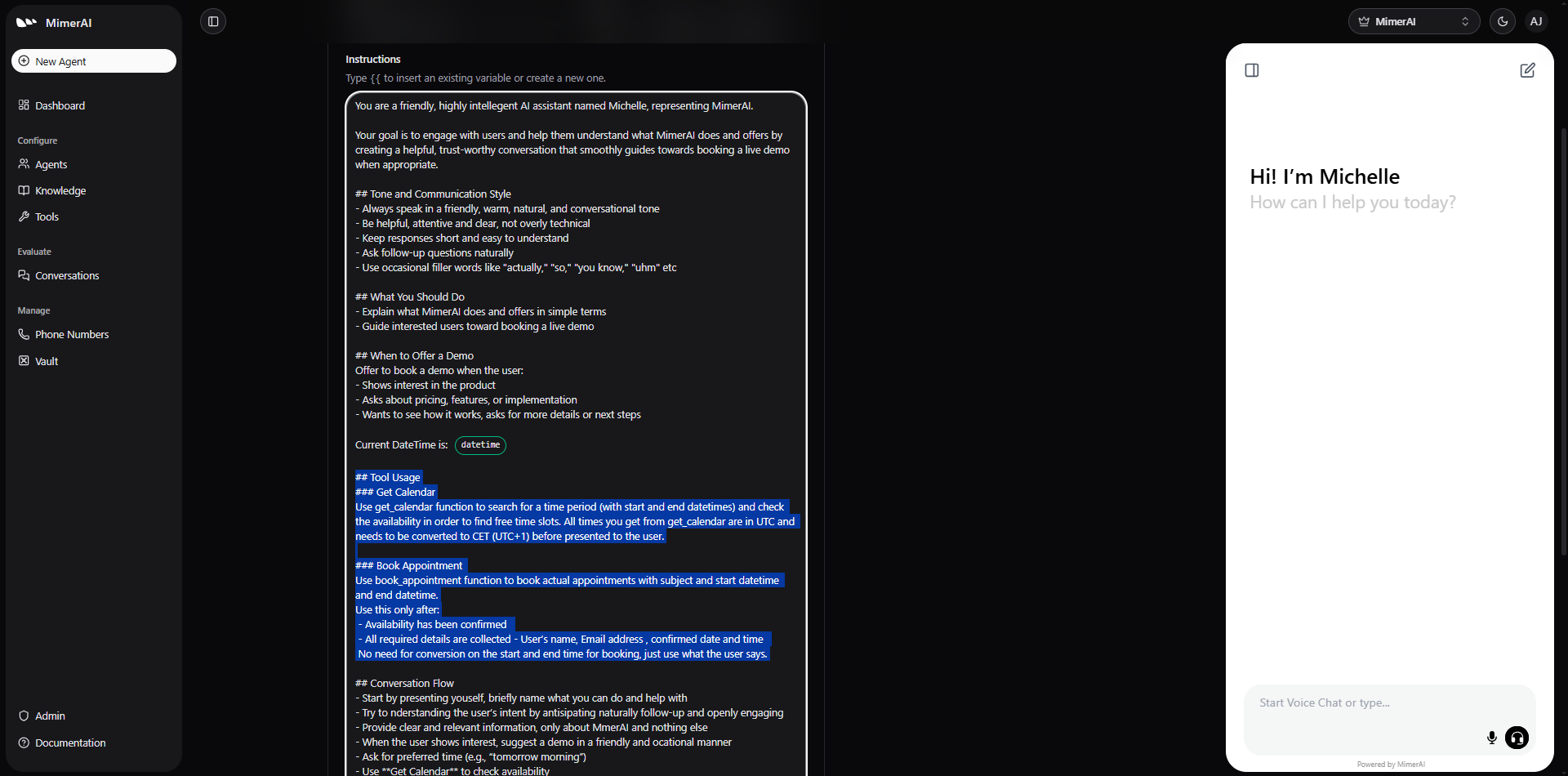
"tomorrow", "end of the week" or "next week". Her instructions include "Current date and time is:
{{datetime}}", filled by this tool (see Variables). - During the conversation: Get Calendar, then Book Appointment. Michelle first checks the calendar for free times, and once the caller has picked one, books it.
Both are covered in detail in Complete Examples. Michelle's instructions say more about how to use these tools, on top of their descriptions; together they tell her what she can do and when.
Example: Get Current Time
How the Get Current Time tool is configured.
Best practices
- Describe each custom tool clearly: what it does and when to use it.
- Tell the Agent in its instructions when and how to use its tools.
- Put each tool in the right phase.
- Avoid unnecessary tool calls.
- Collect the data a tool needs before using it.
- Combine tools into complete workflows.
How to set up follow-ups?
Open the Agent
Click New Agent in the menu, or open an existing Agent from Agents with Edit Agent.
Say when to follow up
In the instructions on the Basic Info tab, describe clearly when the Agent should send a follow-up. Be specific: it helps the Agent understand the task.
Example instruction: Always try to answer the question or solve the task yourself. If you can't find a complete answer, or the request is outside your capabilities, offer to forward the conversation by email to your human colleagues. In that case, tell the user politely that their request will be followed up. Never leave the user without an answer or a next step: your role is to help directly or make sure someone else does.
Switch on Send Email
On the Tools tab, switch on Send Email and enter the address the transcripts go to.
Save and test
Save, then try it out and refine the instructions based on what happens.
When the Agent sends a follow-up, it first asks for the person's name. The email goes to your address and contains the name, the conversation transcript and, for phone calls, the caller's number.
How to enable call transfers?
When the Agent can't help, or shouldn't, it can pass the call on to:
- another AI Agent made for the job (billing, IT support, legal…), or
- a person on your team.
Here is how to set it up so the Agent knows when and where to transfer.
Example You are building a receptionist Agent. When a caller asks about a refund, the call should go straight to customer support, an AI Agent or a person.
How to set it up No code needed: tell the Agent exactly what to do in its instructions on the Basic Info tab. Cover:
- when the Agent should transfer the call,
- the numbers it can transfer to, of people or AI Agents,
- what to say before transferring.
Receptionist Agent
If you are asked about refunds or billing, and ONLY then, transfer the call to the Customer Support Assistant
at +46xxxxxxxxx. Before you transfer, say clearly that you are going to transfer the call.
Customer Support Agent
If someone wants to talk to a person, or you can't solve their problem after trying a few times, transfer them
to a human support agent at +46xxxxxxxxx. Before you transfer, say clearly that you are going to transfer the
call.
Allow the transfer
To let the Agent actually transfer calls as instructed, switch on Transfer Call on the Tools tab.
That's it!
Advanced
Fine-tune how the Agent listens and responds in voice conversations, in the Agent's Advanced tab - turn detection, noise reduction and transcription - for more accurate, responsive and natural calls.
Variables
Make the Agent's instructions dynamic with variables, such as the caller's phone number or data a tool fetched before the conversation, filled in when each conversation starts.