Vault
Store the credentials and secrets your tools use, encrypted, and create API keys for the Envocal API.
The Vault keeps sensitive information safe, in two directions:
- Credentials tab: the keys, tokens and passwords your tools use to reach other systems, stored encrypted.
- API keys tab: keys your own systems use to reach Envocal, through the Envocal API.
Encrypted storage
Instead of putting sensitive information in your tools, you store it in the Vault and tools refer to it by name. Stored values are encrypted and write-only: once saved, they are never shown again, not even to you.
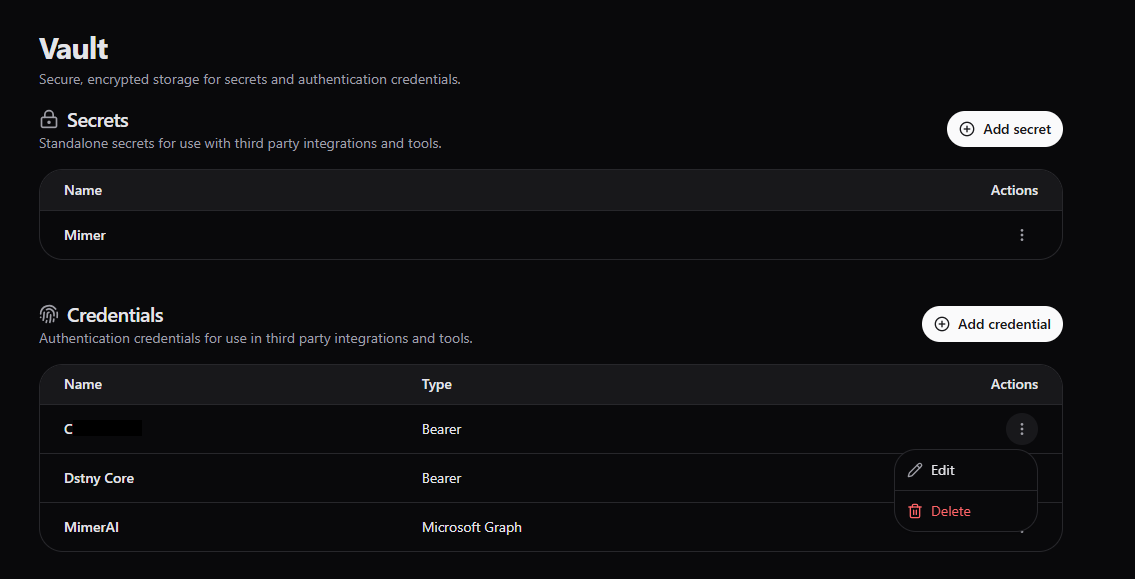
Credentials
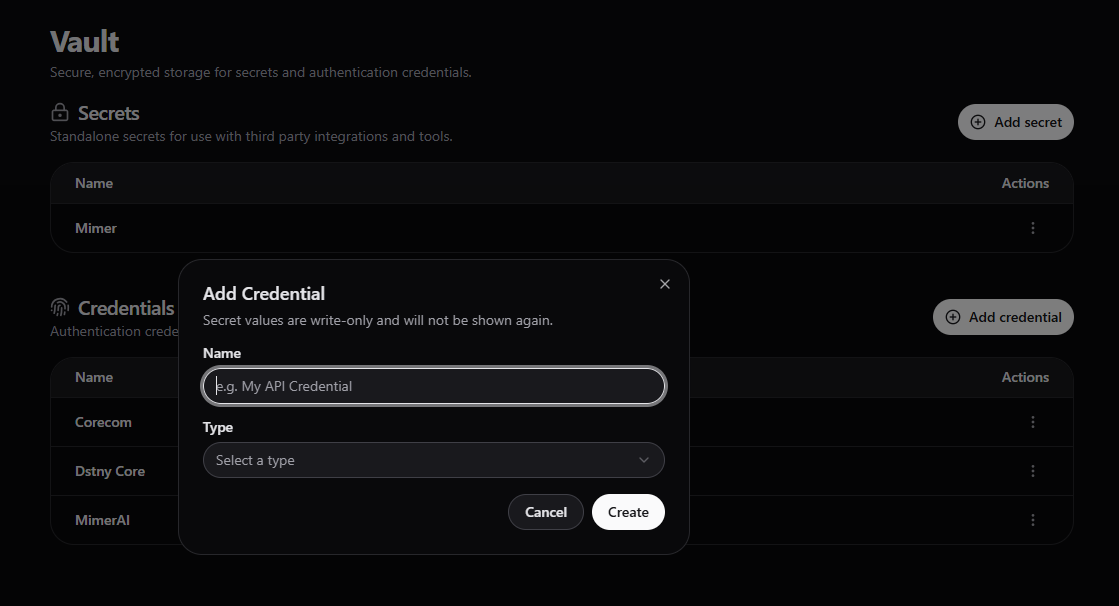
A credential is everything a tool needs to sign in to an API. Its Type is how the API checks who is calling, and decides which fields you fill in. These types are supported:
| Type | Use it for | Fields |
|---|---|---|
| Bearer | APIs that take an API key or access token | Token |
| Basic | APIs that take a user name and password | Username, Password |
| OAuth 2.0 Client Credentials | APIs that issue a token for your app's client ID and secret | Client ID, Client Secret, Token URL; optionally Scope and Audience |
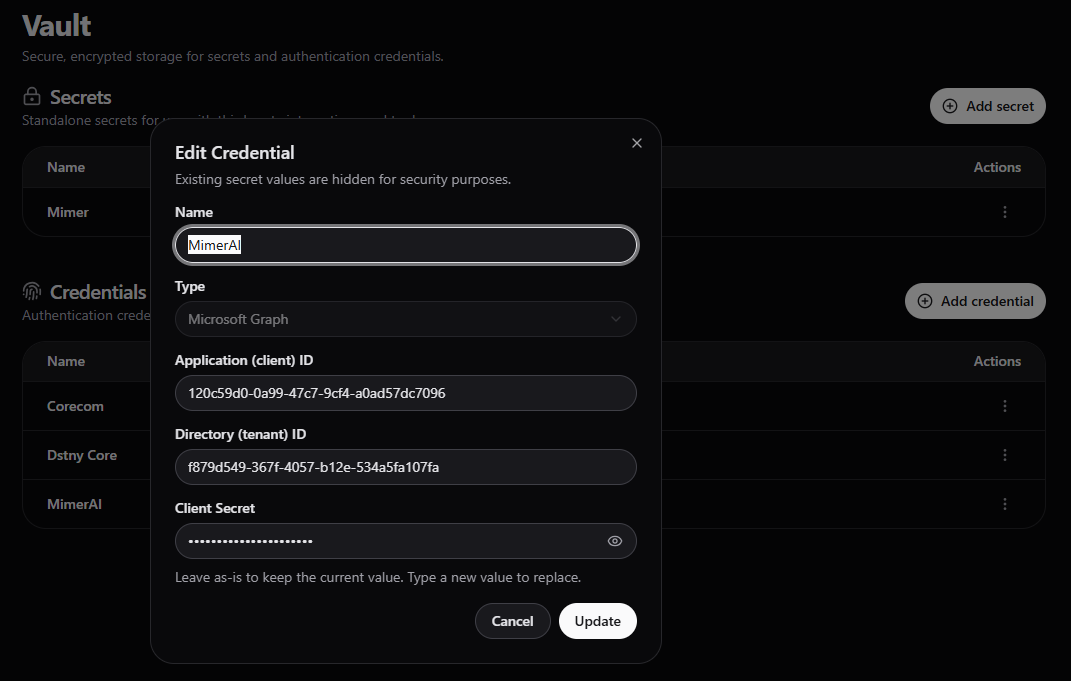
| Microsoft Graph | Microsoft 365, such as Outlook calendars and mail | Application (client) ID, Directory (tenant) ID, Client Secret |
| OAuth 2.0 JWT Bearer Grant | APIs that issue a token for a JWT signed with your key | Token URL, Signing key, Algorithm, Issuer (iss), Audience (aud) |
| Google Service Account | Google APIs, such as Gmail, Google Calendar and Google Sheets | Service Account Email, OAuth Scopes, Private Key |
For every type except Bearer and Basic, Envocal gets an access token from the API's token service itself and sends it with each request.
Add the credential
On the Credentials tab, click Add credential, give it a name you'll recognise (for example "Zendesk support"), choose its Type and fill in the fields the type asks for.
Use it in a tool
In the tool's Authentication tab, choose Credential and pick it.
A credential can be switched off with Enabled, and edited or deleted from its row's menu. When you edit it, the stored secret values stay hidden: leave them as they are to keep them, or type new ones to replace them.
Secrets
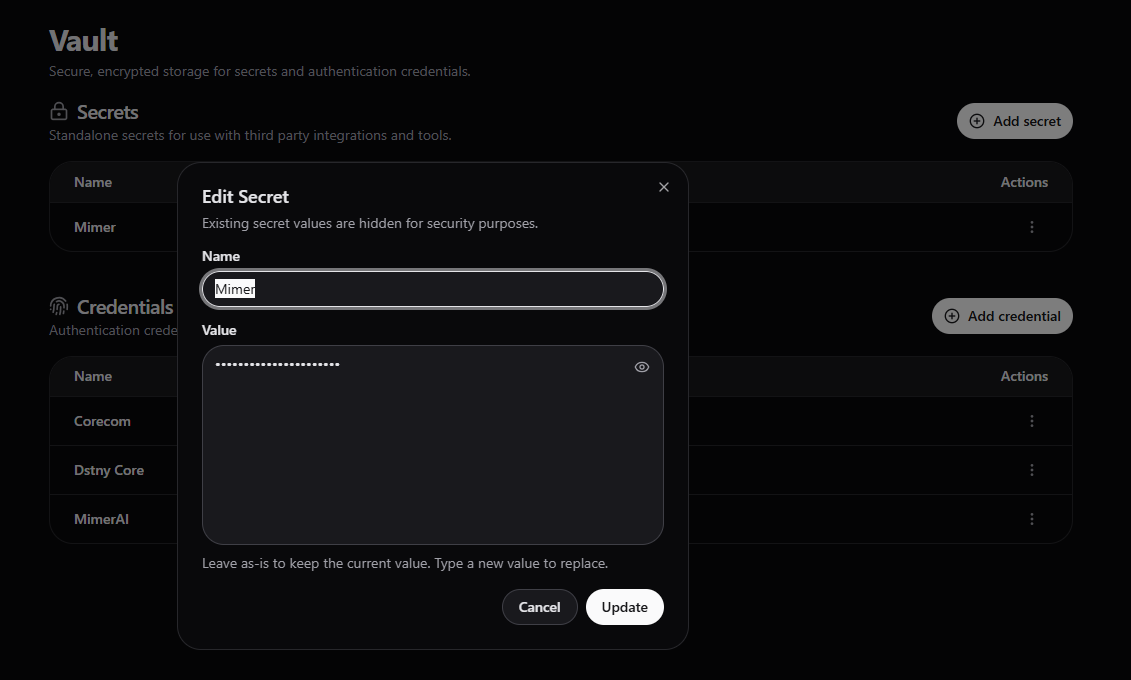
A secret is a single sensitive value that isn't a sign-in, such as a signing secret or a key a header must carry.
Add the secret
On the Credentials tab, under Secrets, click Add secret, give it a name (for example "Slack signing secret") and paste the Secret value.
Use it in a tool
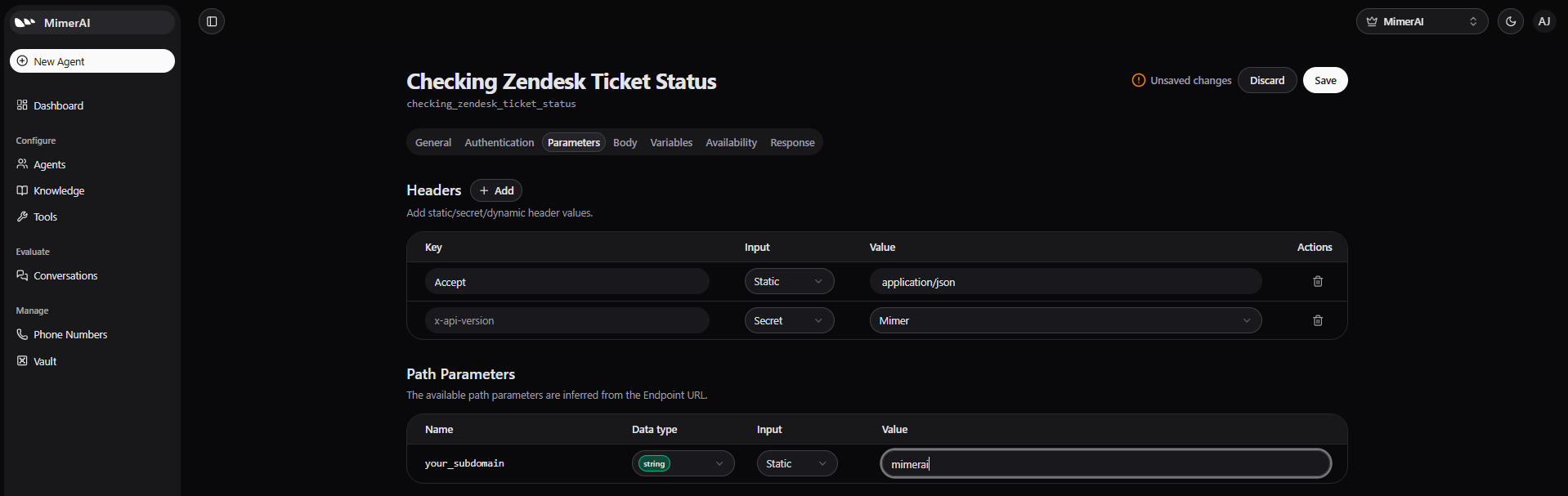
In the tool's Parameters tab, give a header the value type Secret and pick the secret.
API keys
API keys let your own systems use the Envocal API: create customers, set up their agents, invite their users, and read conversations and usage. Only tenant admins see the API keys tab.
A key belongs to the tenant it was created in and reaches that tenant and all its sub-tenants, like an admin of that tenant, limited to the permissions you give it.
Create the key
In Vault → API keys, click Create API key and give it a name that says what uses it, for example "CRM integration".
Choose its permissions
Full access, Read only, or Custom to set None, Read or Write for each area: tenants, members and invites, agents, knowledge bases, phone numbers, conversations and usage (conversations and usage can only be read). Give a key only what its integration needs: a billing report needs read access to usage, nothing else.
Choose when it expires
Never, or in 30 days, 90 days or 1 year. The expiry can't be changed later; for a different one, create a new key.
Copy the key
The full key is shown once. Store it in a secrets manager: Envocal keeps only a hash of it, so it can't be shown again.
Keys start with evk_eu_: the middle part is the data region of
the key's tenant.
The list shows each key's permissions, when it was last used and when it expires. From a key's menu you can Edit its name and permissions, or Revoke it: a revoked key stops working right away.
Treat a key like a password
Anyone with the key can act on your tenant and its sub-tenants within the key's permissions. Never put it in website code or send it by email. If a key leaks, revoke it and create a new one.
Phone Numbers
One place for all the phone numbers your Agents answer - add a number, see which Agent it is assigned to, change it or delete it.
User Management
For Admins - invite team members to a tenant, choose their role (User or Admin), and change or remove their access, from Admin in Envocal Studio.