Widget
Put your Agent on your website as a chat and voice widget. Set where it may run, how it behaves and how it looks, then paste one snippet into your site.
The widget puts your Agent on your website. Visitors chat with it by text, talk to it by voice, or switch from one to the other in the same conversation. Everything is set up in the Agent's Widget tab in Envocal Studio.
Settings apply as soon as you click Save: every website that already has the widget picks them up on its next page load. You never need to change the code on your website after adding it once.
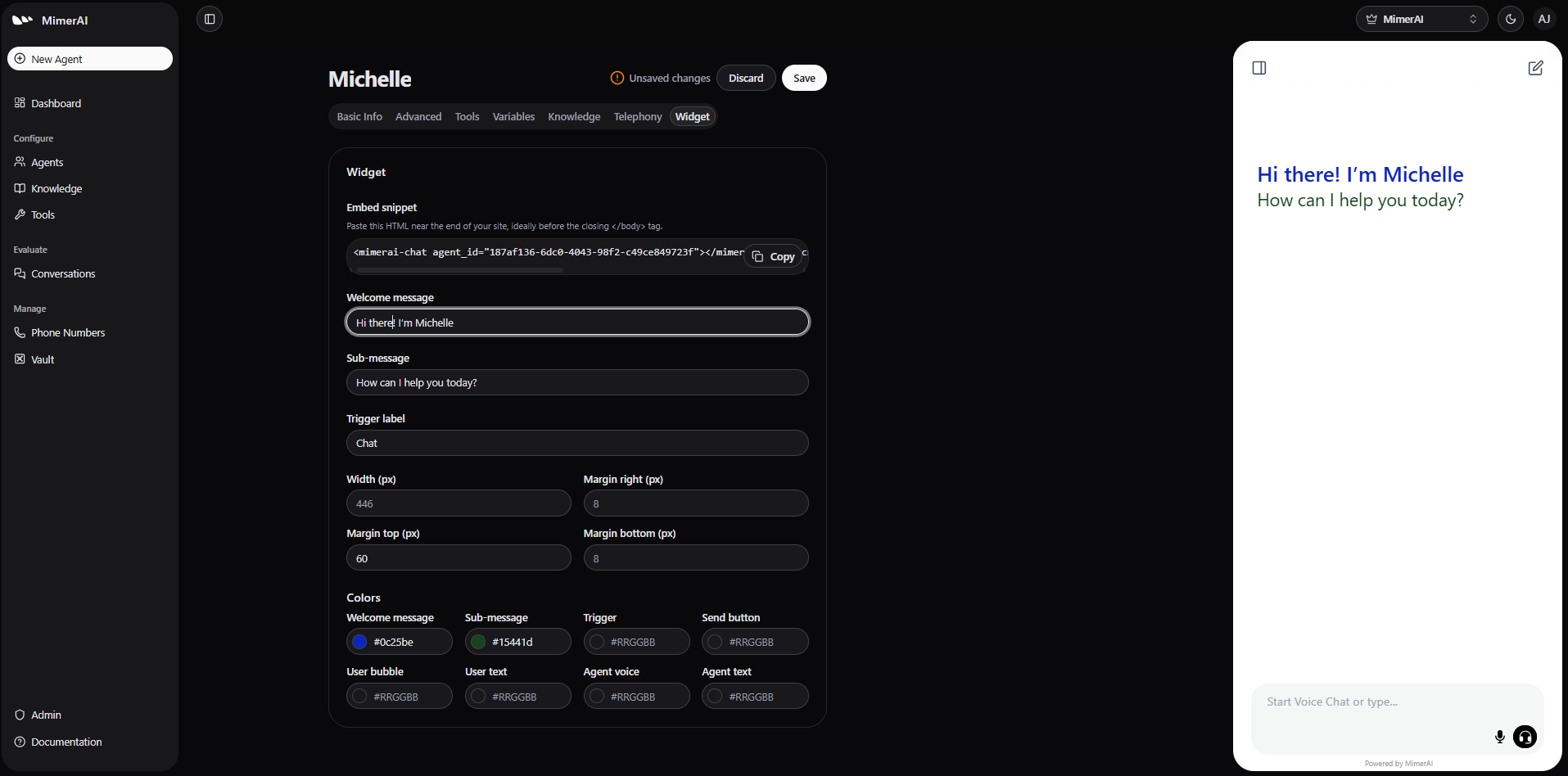
Add the widget to your website
Allow your website
Under Allowed domains, add the domain of every website the widget will run on, for example mysite.com, and click Save. Until a domain is added, the widget only works in Envocal Studio. See Allowed domains.
Copy the embed snippet
Copy the code under Embed snippet. It contains your Agent's id, so save a new Agent first; before that, it shows YOUR-AGENT-ID instead.
<envocal-chat agent_id="YOUR-AGENT-ID"></envocal-chat><script src="https://cdn.envocal.ai/envocal-chat.min.js" async type="text/javascript"></script>Paste it into your website
Paste the snippet into every page that should show the widget, ideally just before the closing </body> tag. On most website builders this is a "custom code" or "footer code" setting. The widget loads without slowing down the page.
Test it
Open your website and start a conversation. Text chat works right away; for voice, the browser asks the visitor for microphone access. Conversations from the widget appear under Conversations like all others.
Allowed domains
The widget only runs on the websites listed here. This stops other websites from copying your snippet and running your Agent at your expense.
- A domain covers all its subdomains:
mysite.comalso allowswww.mysite.comandshop.mysite.com. - Enter just the domain. A full address like
https://www.mysite.com/contactis cleaned up towww.mysite.com. - Wildcards (
*.mysite.com) and IP addresses aren't accepted. Up to 50 domains per Agent. - With no domains listed, the widget works in Envocal Studio only.
- Reset Default in the Widget tab resets the look and behaviour but keeps the allowed domains, so the widget keeps working on your live site.
On a website that isn't allowed, the widget shows the message "The widget settings could not be loaded. Check that this website is in the agent's allowed domains." instead of starting.
Modes
Mode (under Behavior) decides what visitors can do:
| Mode | What visitors get |
|---|---|
| Voice and text (default) | A chat window with both text chat and voice calls. A visitor can start a call in the middle of a text conversation; the Agent keeps the context. |
| Voice only | A compact call pill, bottom center by default. No text chat. |
| Text only | The chat window without voice calls. The trigger label defaults to "Chat". The Agent's phone numbers keep working. |
How visitors use it
- Opening: the widget starts minimized as a button (the trigger), unless Start open is on. With Trigger style set to Message field, the trigger is a text field, so visitors can type their first message straight away.
- Text chat: the Agent's replies stream in as they are written and can contain formatting, lists, links and code blocks with a copy button.
- Voice: the call button starts a call. The microphone button dictates a message into the text field (when Dictation is on); during a call it mutes the microphone. During a call the transcript is hidden unless Show transcript by default is on; visitors can show or hide it with the messages button in the header.
- New conversation in the header clears the chat and starts over; Minimize hides the window without ending the conversation.
- Phones and tablets: the open chat fills the whole screen, whatever the desktop size settings.
- Ending: a conversation ends after a period of inactivity, with the message "Conversation ended due to inactivity." Reloading or leaving the page also ends it.
Voice needs a secure website (https://) and the visitor's permission to use the microphone. During a call the widget keeps the visitor's screen awake.
Settings
All settings are in the Agent's Widget tab. Leave a field empty to use the default shown in it.
Behavior
| Setting | What it does | Default |
|---|---|---|
| Mode | Voice and text, voice only or text only. See Modes. | Voice and text |
| Dictation | Visitors can speak a message into the text field instead of typing. | On |
| Show transcript by default | Show the written transcript during calls. Visitors can still toggle it. | Off |
| Start open | Open the chat window when the page loads. | Off |
Layout
| Setting | What it does | Default |
|---|---|---|
| Position | Bottom right, bottom center or bottom left. | Bottom right (voice only: bottom center) |
| Trigger style | Button: a labelled button. Message field: a text field visitors can type into right away. | Button |
| Corner radius | Rounding of the chat window's corners, 0 to 40 px. | 28 px |
| Width | Width of the chat window on desktop, at least 300 px. Never wider than the screen. | 420 px |
| Fixed height | Off: the window uses the full screen height minus the top and bottom margins. On: it's limited to the height you enter (300 to 2000 px). | Off |
| Top margin | Space kept free above the chat window. If your website has a fixed header, make it taller than the header so the open chat starts below it. Not used while Fixed height is on. | 60 px |
| Bottom margin | Space between the widget and the bottom of the page. | 20 px |
| Side margin | Space between the widget and the side of the page it sits on. | 20 px |
Margins go from 0 to 120 px. On phones and tablets the open chat fills the screen, so the size settings apply to desktop only.
Theme and colors
| Setting | What it does | Default |
|---|---|---|
| Theme | Light, Dark, System (the visitor's device setting) or Page (follow the website). | Page |
| Translucent | A frosted-glass background for the chat window. | Off |
| Colors | Trigger, start-call button, active send button, messages, welcome text and the orb's voice color, as #RRGGBB. | The theme's colors; orb blue #2b7fff |
Page follows the website only when the page says whether it is light or dark: a dark or light class, a data-theme (or similar) attribute, or a color-scheme of dark or light on the <html> or <body> element. Otherwise the widget is light. It follows changes live, so a website's own theme switch also switches the widget.
Text and typography
| Setting | What it does | Default |
|---|---|---|
| Welcome message and Welcome subtitle | Shown at the top of the start screen. Not shown when empty. | Empty |
| Trigger label | Text on the minimized button. | "Voice Chat" (text only: "Chat") |
| Start-call button label | Text on the button that starts a call. | "Start a call" |
| Message placeholder | Hint text in the empty message field. | "Ask anything…" |
| Font | A CSS font-family. See Font. | The website's font |
Orb and logo
| Setting | What it does | Default |
|---|---|---|
| Orb style | The animated orb on the trigger and during calls: Cloud or Circle. | Cloud |
| Logo URL | An image shown in the chat window's header. Use an https:// link to a PNG, JPG, WebP, GIF or SVG. | None |
| Logo scale | Size of the logo; 100% is 28 px tall, up to the header's height. | 100% |
Font
The widget automatically uses the same font as the website. To use a different font, enter it under Font as a CSS font-family, for example Inter, sans-serif. The website must load that font (or the visitor's device must have it installed); the widget doesn't load fonts itself.
For developers
The settings in the Widget tab are the normal way to configure the widget. A website can also adjust it from its own code.
Tag attributes
Attributes on the <envocal-chat> tag override the saved settings on that page. Use the setting names in lower case, with underscores where they have them:
<envocal-chat agent_id="…" theme="dark" mode="text_only" start_open="true" position="bottom-left"></envocal-chat>Common attributes: mode (voice_and_text, voice_only, text_only), theme (light, dark, system, page), position (bottom-right, bottom-center, bottom-left), start_open, trigger_style (normal, input), font, width, height, show_transcript_during_call and z_index.
z_index sets the widget's stacking order (the CSS z-index, 39 by default). By default the widget sits above ordinary page content but below the website's own menus and dialogs, so those open on top of it, even while the chat is open. On phones the open chat fills the screen and covers everything, like a dialog. If the widget ends up behind something on your website, or in front of something it shouldn't cover, set a different value:
<envocal-chat agent_id="…" z_index="1000"></envocal-chat>JavaScript
configure() changes settings while the page runs, without restarting a conversation. It overrides both the saved settings and the attributes:
const widget = document.querySelector('envocal-chat');
widget.configure({ theme: 'dark', showTranscriptDuringCall: true });
Client-side tools
Client-side tools are tools your website defines for the Agent. They run in the visitor's browser, so the Agent can act on the page itself: navigate to another page, fill in a form, show a product. The Agent calls them in text and voice conversations, and each tool's return value is sent back to the Agent.
Define the tools and their handlers on the element, before the visitor starts a conversation:
<envocal-chat id="envocal-widget" agent_id="…"></envocal-chat>
<script>
  const widget = document.getElementById('envocal-widget');
  widget.tools = [{
    name: 'set_name',
    description: 'Show the visitor name in the page heading when they tell you their name.',
    parameters: {
      type: 'object',
      properties: { name: { type: 'string', minLength: 1, maxLength: 100 } },
      required: ['name'],
      additionalProperties: false
    }
  }];
  widget.tool_handlers = {
    set_name: async ({ name }) => {
      document.querySelector('h1').textContent = 'Welcome ' + name;
      return { ok: true };
    }
  };
</script>
<script src="https://cdn.envocal.ai/envocal-chat.min.js" async></script>- Only the tool definitions are sent to Envocal; the handlers stay in the page. Validate the arguments in the handler: the AI writes them.
- A handler may be async. A thrown error is reported to the Agent as a failed tool call; a handler gets 30 seconds by default.
- Tool names must be unique and can't reuse the names of the Agent's own tools.
- Changes to
toolsandtool_handlersapply from the next conversation. - Up to 32 client-side tools per page.
Troubleshooting
Telephony
Never again miss a call, put the caller on hold or make them go though the pain of IVR - your Agent takes care of that. Serve every customer as & when best works for them. An experience they will remember!
Knowledge
Easily equip your Agents with the key knowledge about your business, products, and services, ensuring they have the intelligence needed to meet the objectives you define.